
Setting up and trying OpenManus
A little bit less of a useful AI Agent, than I hoped. But here we are.

SUMMARY Part 2
This is part 2 of the summary of a 2-day workshop, designed for anyone who is looking to explore low-code applications to create Agentic AI based on Large Language Models (LLMs) from design to deployment.
Now we will try out the low-code tool OpenManus by:
• Setting up a virtual environment
• Configurating our API Keys
• Coming up with a digital product that is end-to-end created through prompts
• Locally previewing the digital product in browser
Before you start, you need: an IDE (like VS Code), an OpenAI Key (or any other model you aim to use).
The Chinese plattform Manus took LinkedIn in storm, becoming the latest in a long line of AI tools to make actual developers rethink their life choices, as this end-to-end AI agent seemed to have it all. And if that alone was not a red flag, Manus became invite-only just a few days after launching.
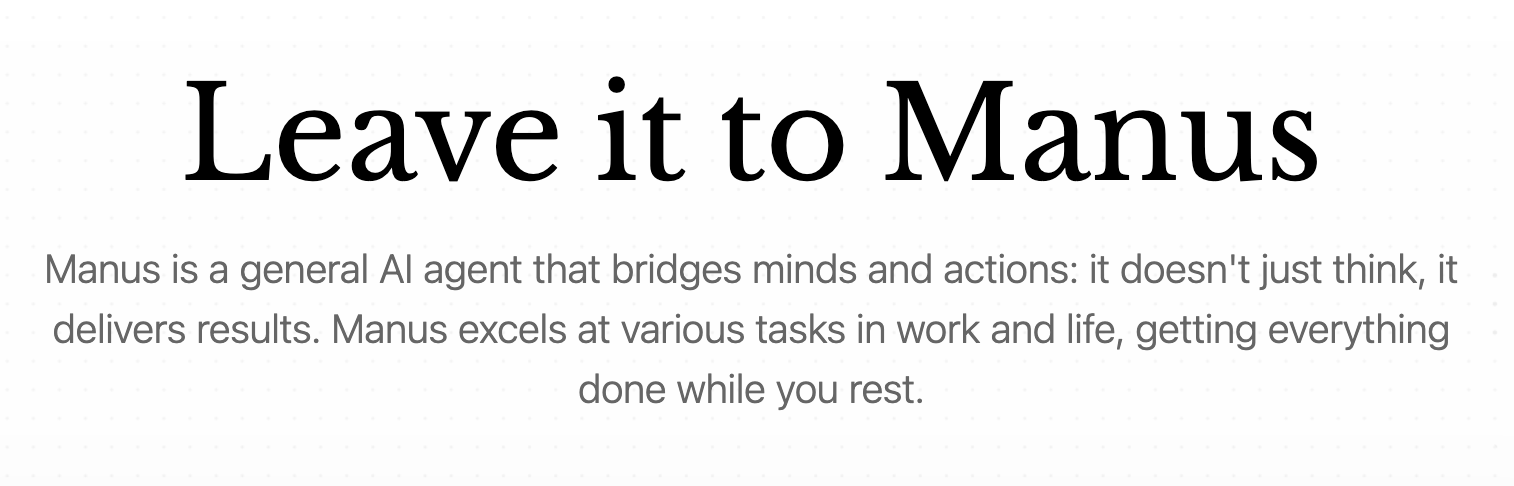
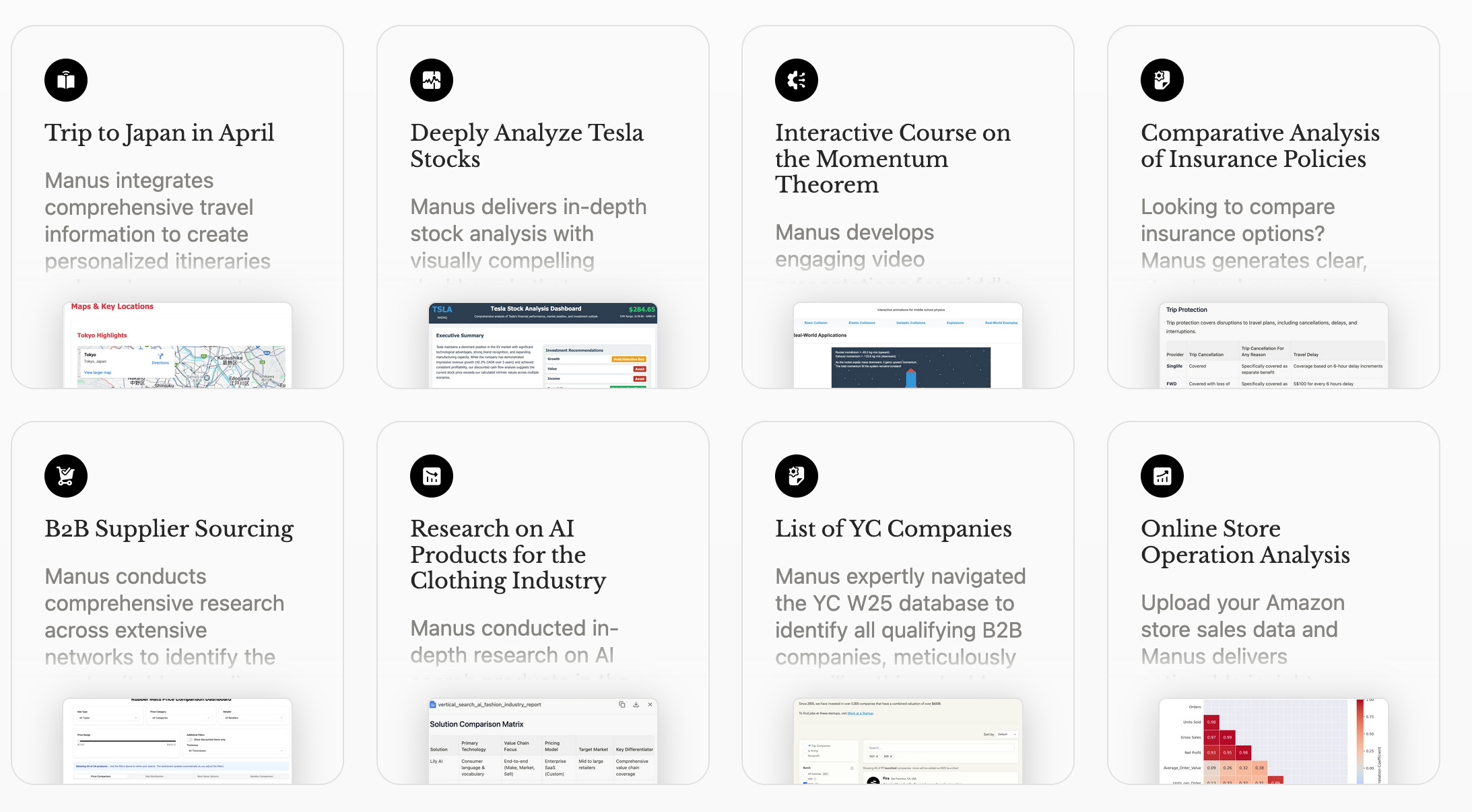
The use cases on their website seemed very impressive. Mostly, because they came animated in video form. As I have not used it myself (invite only) I cannot talk from experience. But from my understanding a ChatGPT-like user interface comes with the desirable feature of actually delivering results. Only the deployment and hosting would be up to you, if needed.
So far, so OpenManus
OpenManus is, as the name says, open-source and has been built by contributors from MetaGPT. The Github repository offers you everything you need to set it up. Still, I’ll show you what it looks like step by step, just because.
Using conda
Open your terminal. Create a new conda environment:
conda create -n open_manus python=3.12
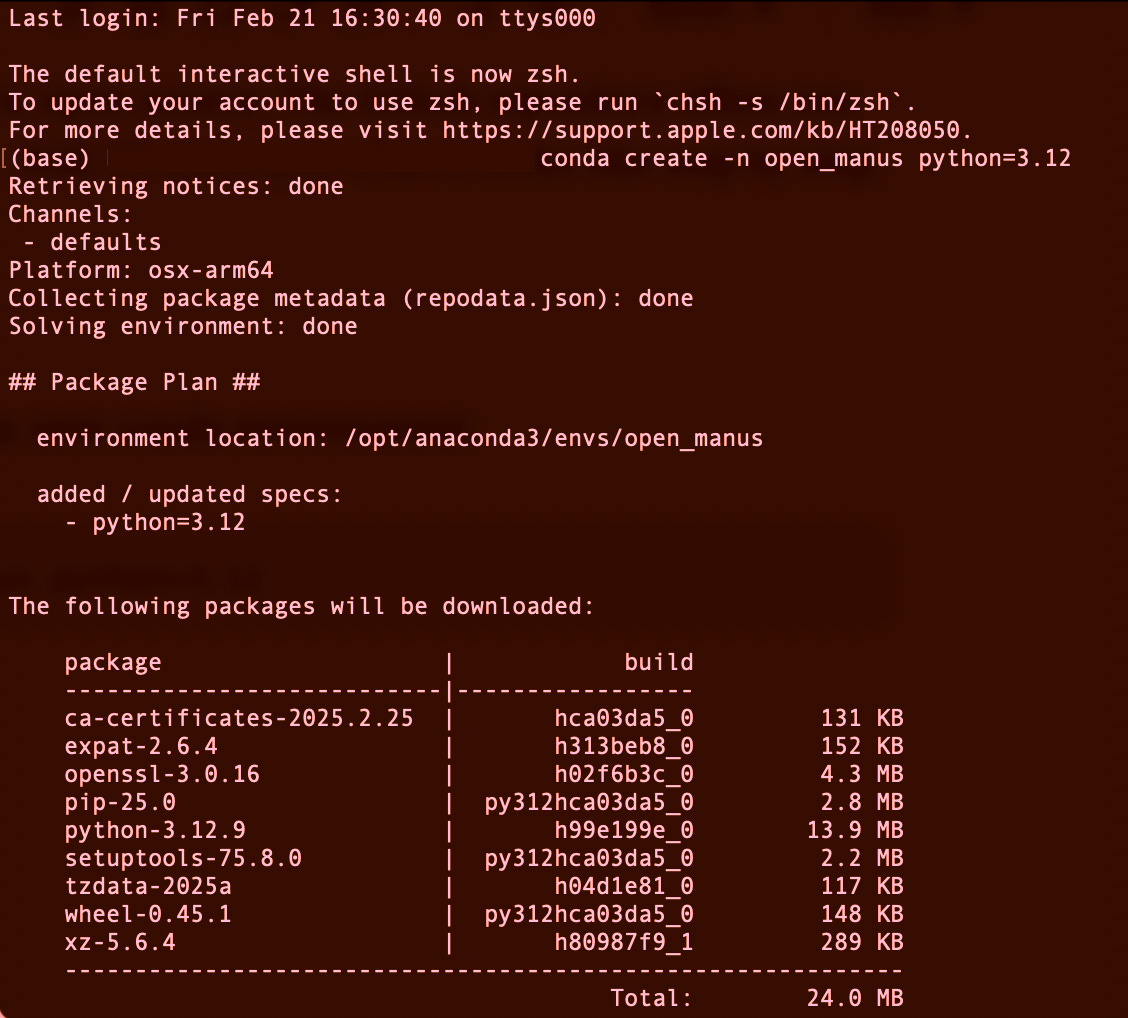
looks like this, then in Terminal, which will ask you:
Proceed ([y]/n)?
you say “y”
Activate your environment
conda activate open_manusnow, you should find the name of the environment, (open_manus) <your device>:~ <your username> in the next line.
Clone the repository
git clone https://github.com/mannaandpoem/OpenManus.gitIt will download the content into your directory.
Go to the directory
cd OpenManuscd will guide you to the content. you can use ls to list the file contents.
Install dependencies
pip install -r requirements.txtCan take a while. But it will download all packages needed to use OpenManus.
Troubleshoot: If you (like me) had an issue with pydantic.core, just delete it from the reqiuirements.txt and re-run the installment comand in terminal. It made no difference for me and several other students of mine. No need to close the terminal. You will need it in a bit.
Configuration
In your terminal, you will now need to create a configuration file to store your API Keys.
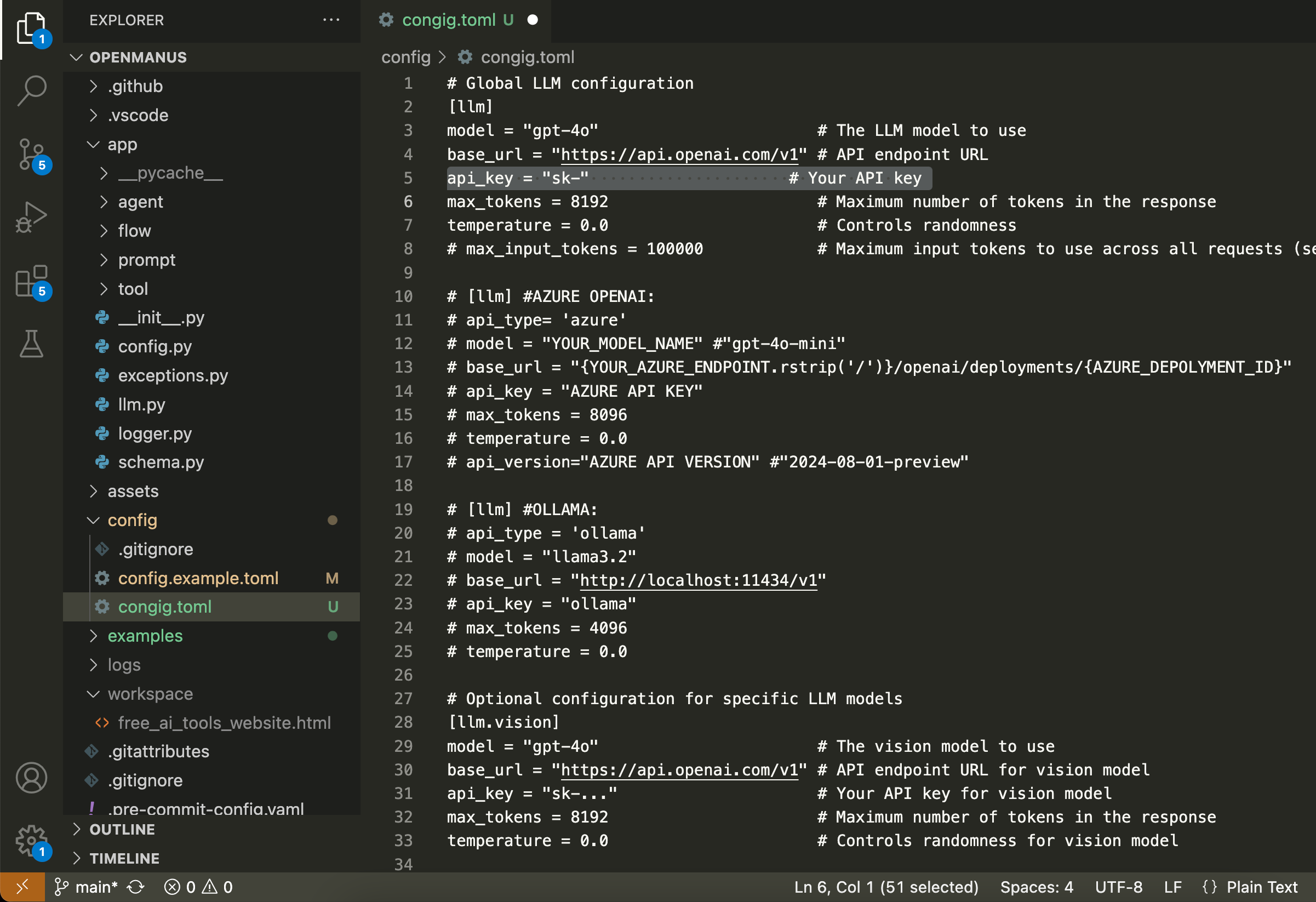
cp config/config.example.toml config/config.tomlNow open the OpenManus file in VS Code, or whatever IDE you are using and go into the config.toml file to edit the following:
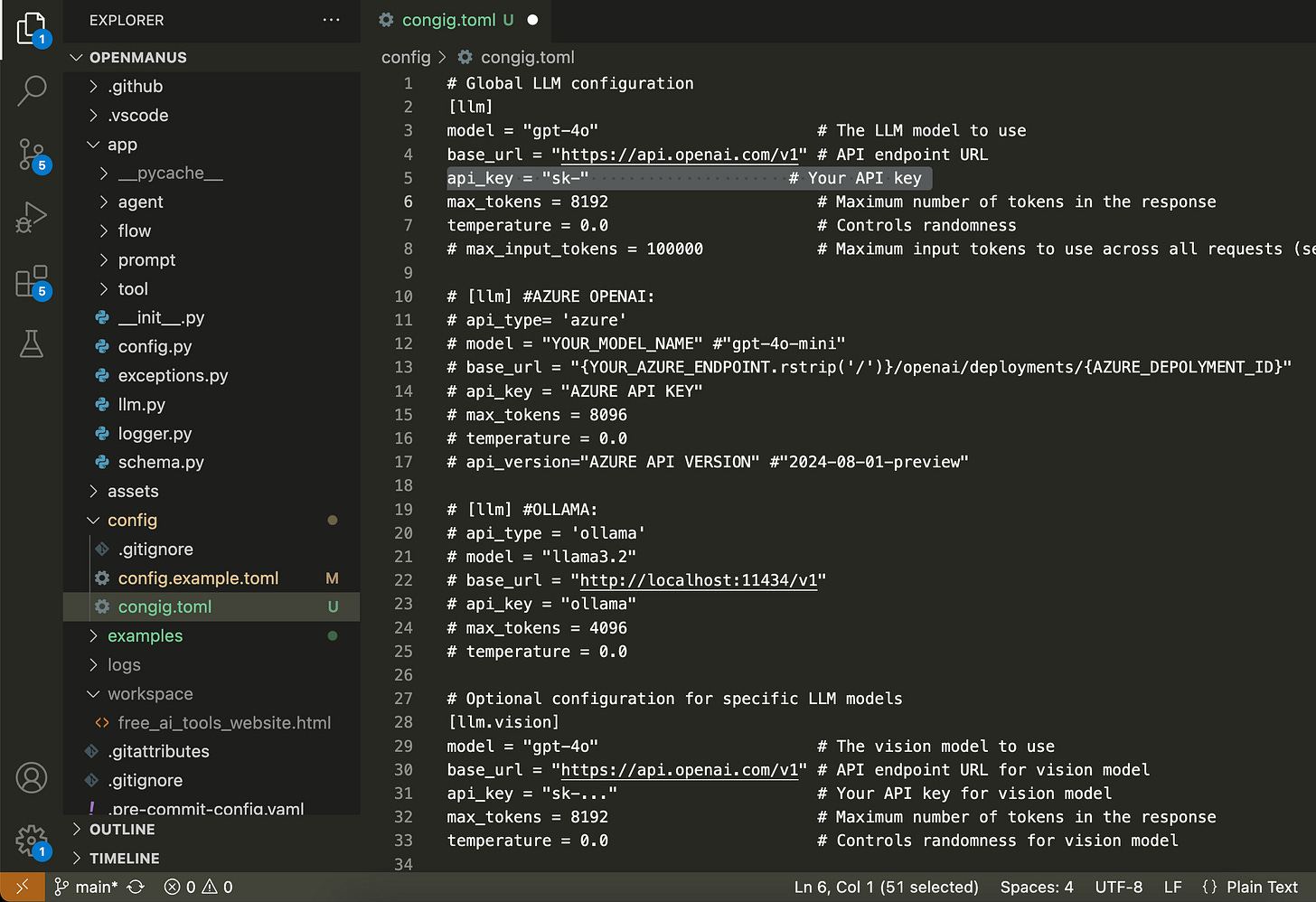
The marked line 5 is for your API Key. You can obtain your API Key on
https://platform.openai.com/. Make sure to not remove the ““ and save the file.
Now you can prompt OpenManus
The setup is done, so you can go back into your terminal.
In terminal, run the command
python main.pyIt will now ask you to type in your prompt. Mine was
“create a SEO optimized website to get an overview over free AI tools that researchers can use throughout their studies into computer science”OpenManus does it’s magic, if you correctly added your API Key priorly in the configuration file. In the terminal, you can see the whole process. Mine looked like this:
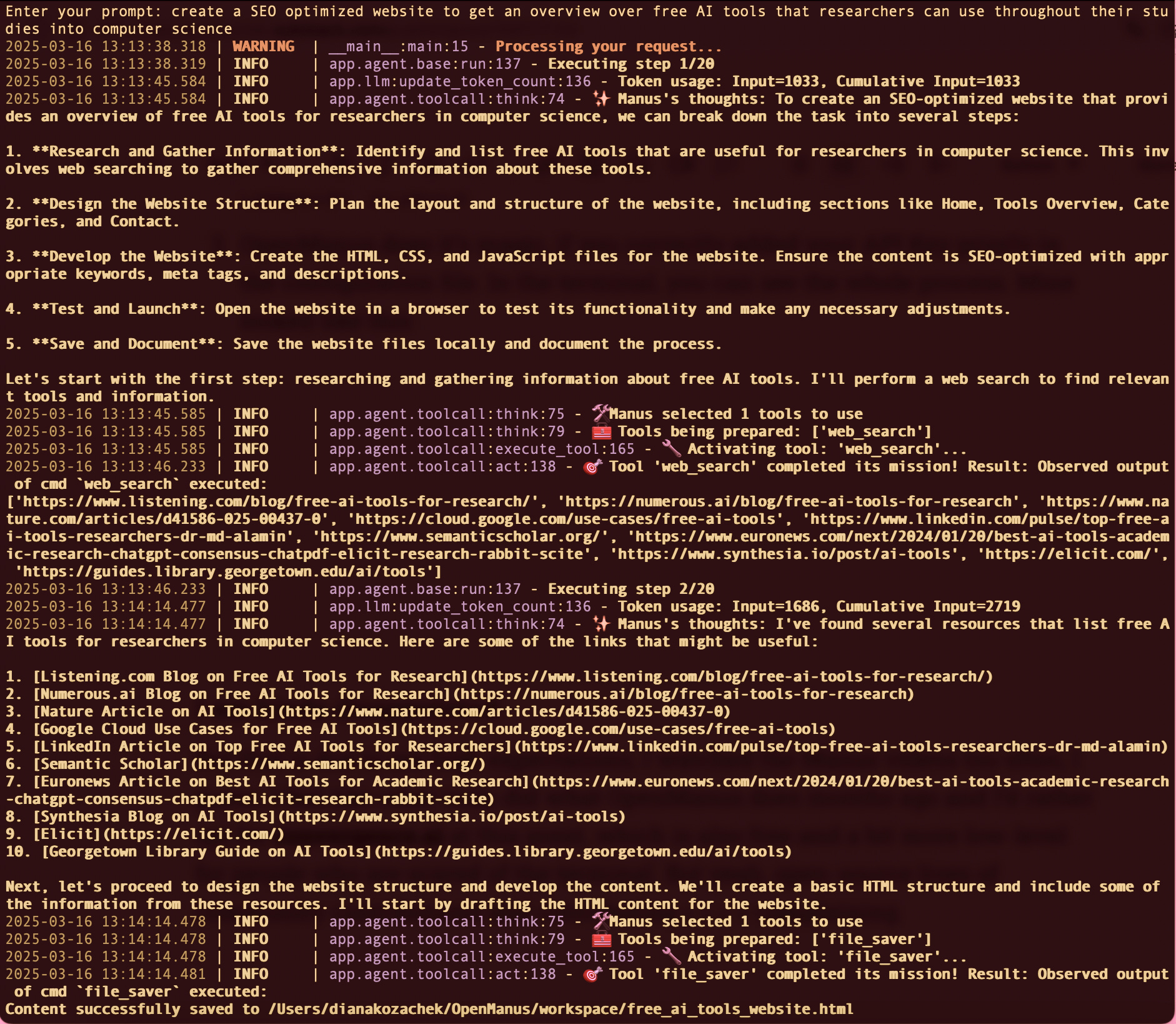
You can find the file in your OpenManus folder, under workspace. It will pick automatically a name that is suitable for the project. If you are lucky, the a window will be opened in the browser to display the .html file by default. If you are me, you have to take the following small extra steps:
Open your file in Browser
In Terminal, navigate to the directory containing the html file by: cd workspace
If you have chrome installed, use:google-chrome <filename>.htmlWorks with any other browser likefirefox <filename>.html1. 1 OR: Type the following line into your terminal
pushd <filename>.html; python3 -m http.server 9999; popd;o to your browser und type into the bar: http://0.0.0.0:9999/
1.2 Then gOR/Easy way out: Open https://liveweave.com/ and paste your .html code
→
Result (de-saturated for aesthetics)

It works, but I am a little bit disappointed.
But that is due to my high expectations, I watched the Manus videos too often, I guess. I feel like other tools did what OpenManus does months ago and I’d rather opt for convergence.ai at this point, which is also free and a bit more low-level for people who are scared of the terminal. But yeah, open-source lives of community contributions and contributing > > > > complaining.
REVIEW:
Part 1: AI-Agents vs. AI-Workflows
PREVIEW:
Part 3: I still don’t understand how AI Agents are different from Chatbots